Body
This guide provides essential steps for setting up Multi-Factor Authentication (MFA) for eBill users, enhancing security for financial transactions. By following these instructions, students can protect their accounts with an additional layer of verification, helping to prevent unauthorized access. Viewing this guide ensures you understand and successfully implement MFA, safeguarding your personal and financial information effectively.
1. Log into Raiderlink and select eBill from the SBS portion of the MyTech tab.

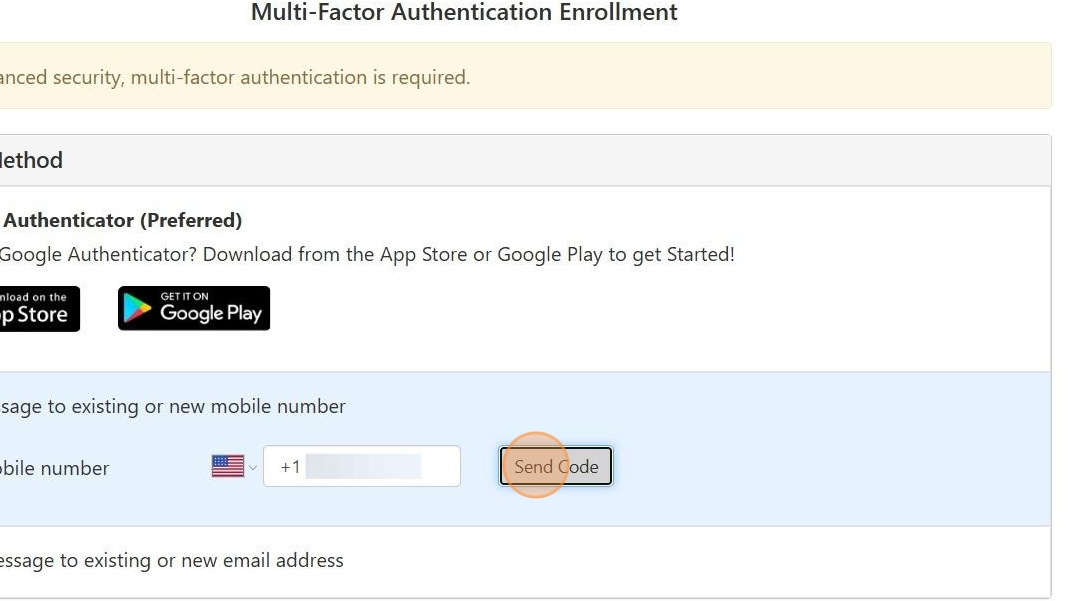
2. Select which Primary Method you would like to utilize for your Multi-Factor Authentication Enrollment.

3. Enter your mobile number (including the "1" in front of the number), email or scan QR code or unique key on screen (for Google Authenticator).

4. Select "Send Code".
5. Enter code received and select "Verify".

6. To complete the OPTIONAL "Backup Method", select "Setup Method" and complete the steps provided.

7. Select your backup method below:

8. Select an existing email or enter a new email. Select send code.

9. Select "Continue".
